uSymphony also includes Unity Toolbar and Status Bar features, allowing you to control the Unity Editor directly from Visual Studio. These tools help reduce the need to switch between Visual Studio and Unity, making development more efficient.
Unity Toolbar
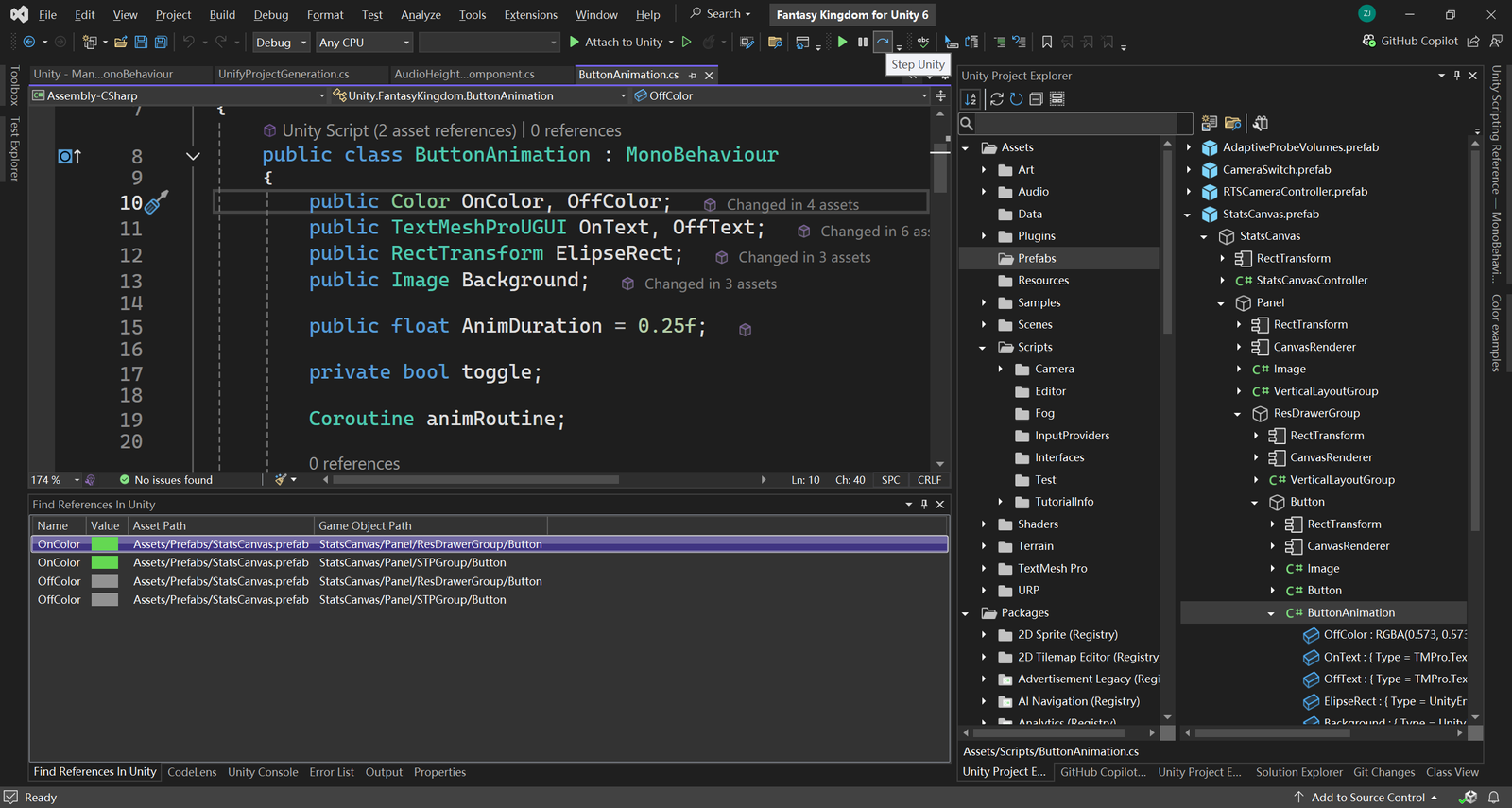
The Unity Toolbar lets you control the Unity Editor right from Visual Studio. Key features include:
- Play Mode Control: Use Play, Pause, and Step buttons that function exactly like those in the Unity Editor.
- Unity Editor Management: Easily open, close, or restart Unity directly from Visual Studio.
- Unity Hub Management: Easily open, close, or restart Unity Hub directly from Visual Studio.
Unity Status Bar
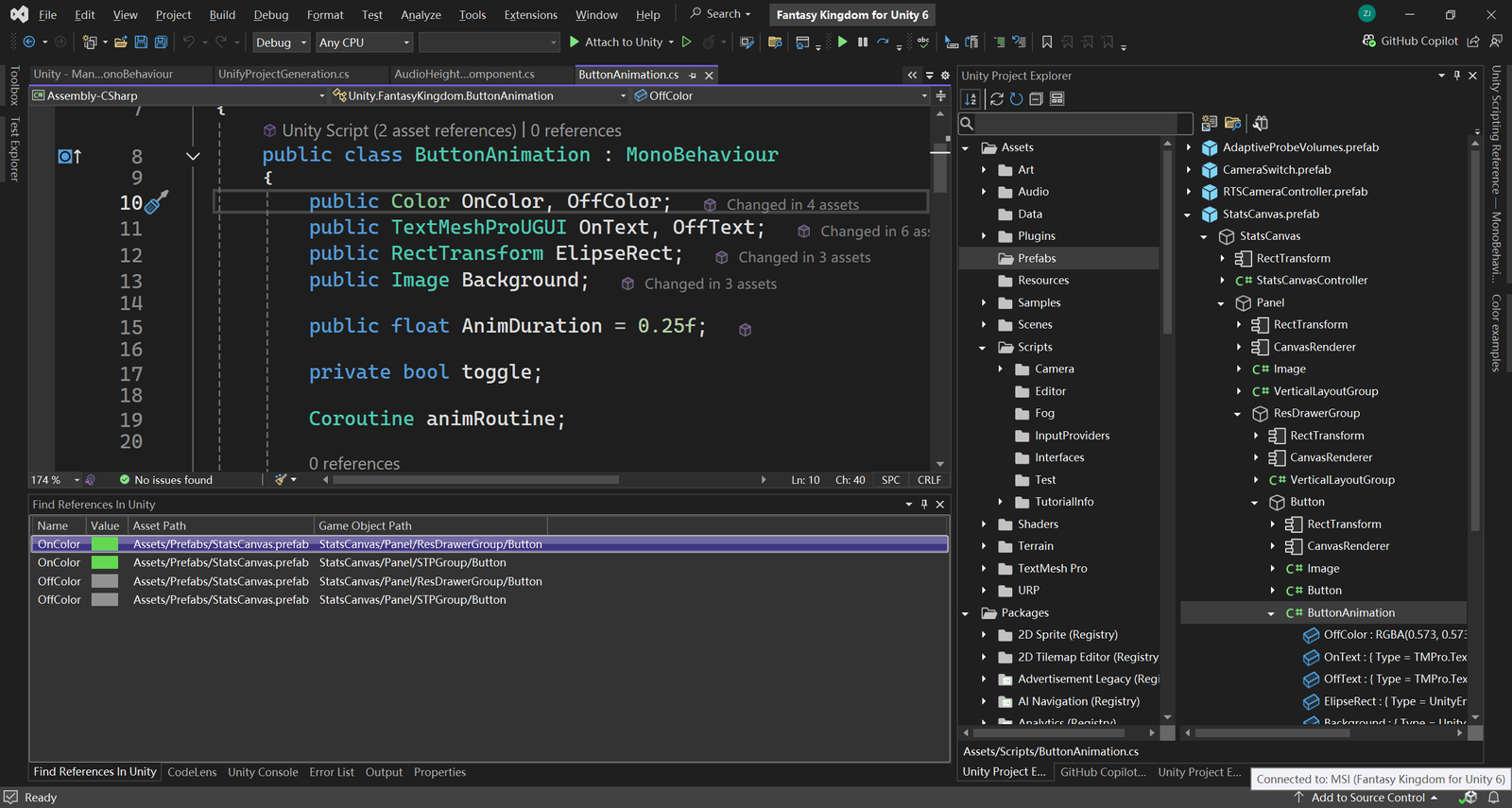
The Unity Status Bar provides real-time feedback on the state of the Unity Editor, including:
- Live Status Updates: See information such as compilation progress and play mode status.
- Connectivity Indicator: Quickly determine whether the Unity Editor is connected to Visual Studio, ensuring your development environment is fully synchronized.
Enhanced Debugger Attach & Detach
The standard “Attach to Unity” flow often stalls: connecting can take ten-plus seconds and may still fail, and clicking Detach may freeze Visual Studio, leaving both VS and Unity hanging. These hiccups break the “code → play → debug” rhythm and waste precious minutes. uSymphony replaces that brittle loop with a more stable workflow: you can now attach the debugger to a running Unity process in moments and detach just as smoothly, avoiding the multi-second stalls and random time-outs that plague the stock approach.