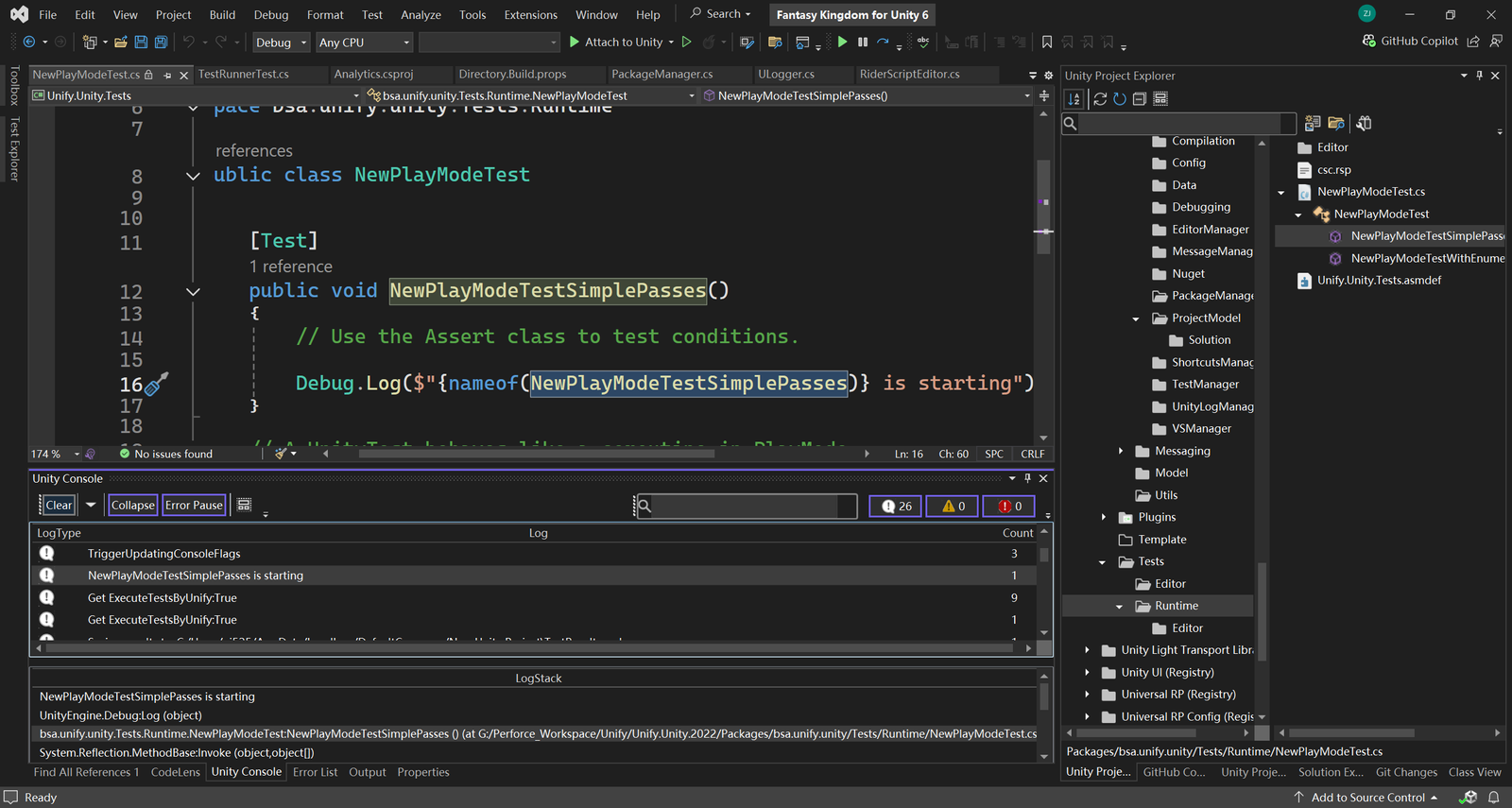
The Unity Console tool window brings Unity’s Console Window into Visual Studio. The Unity Console Tool Window mirrors and enhances the functionality of the traditional Unity Console Window. Designed with developers in mind, this tool window offers seamless integration between Visual Studio and Unity’s logging system, allowing you to manage and control Unity’s console behavior directly from within your IDE.
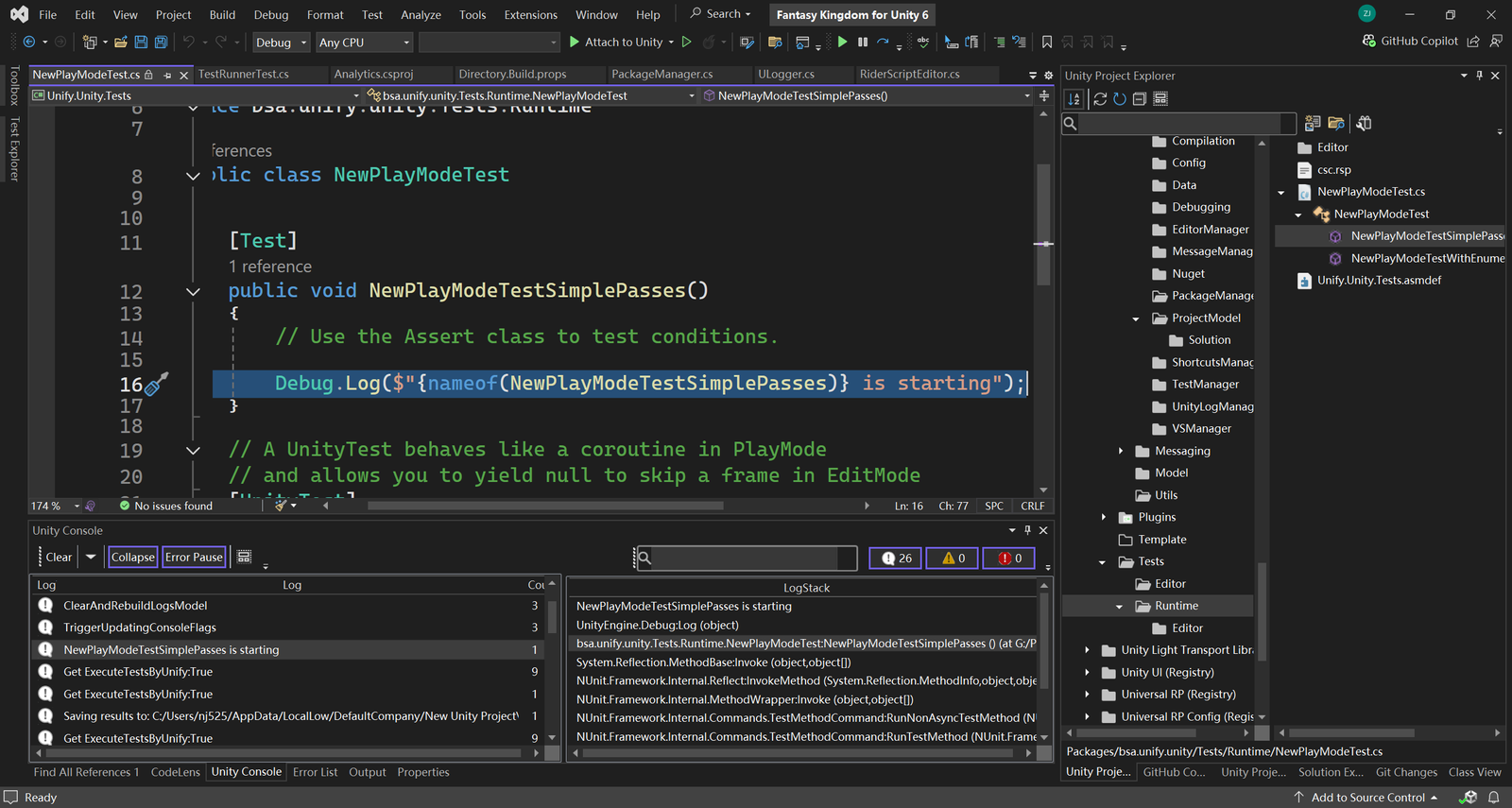
Key Features
- Log Management:
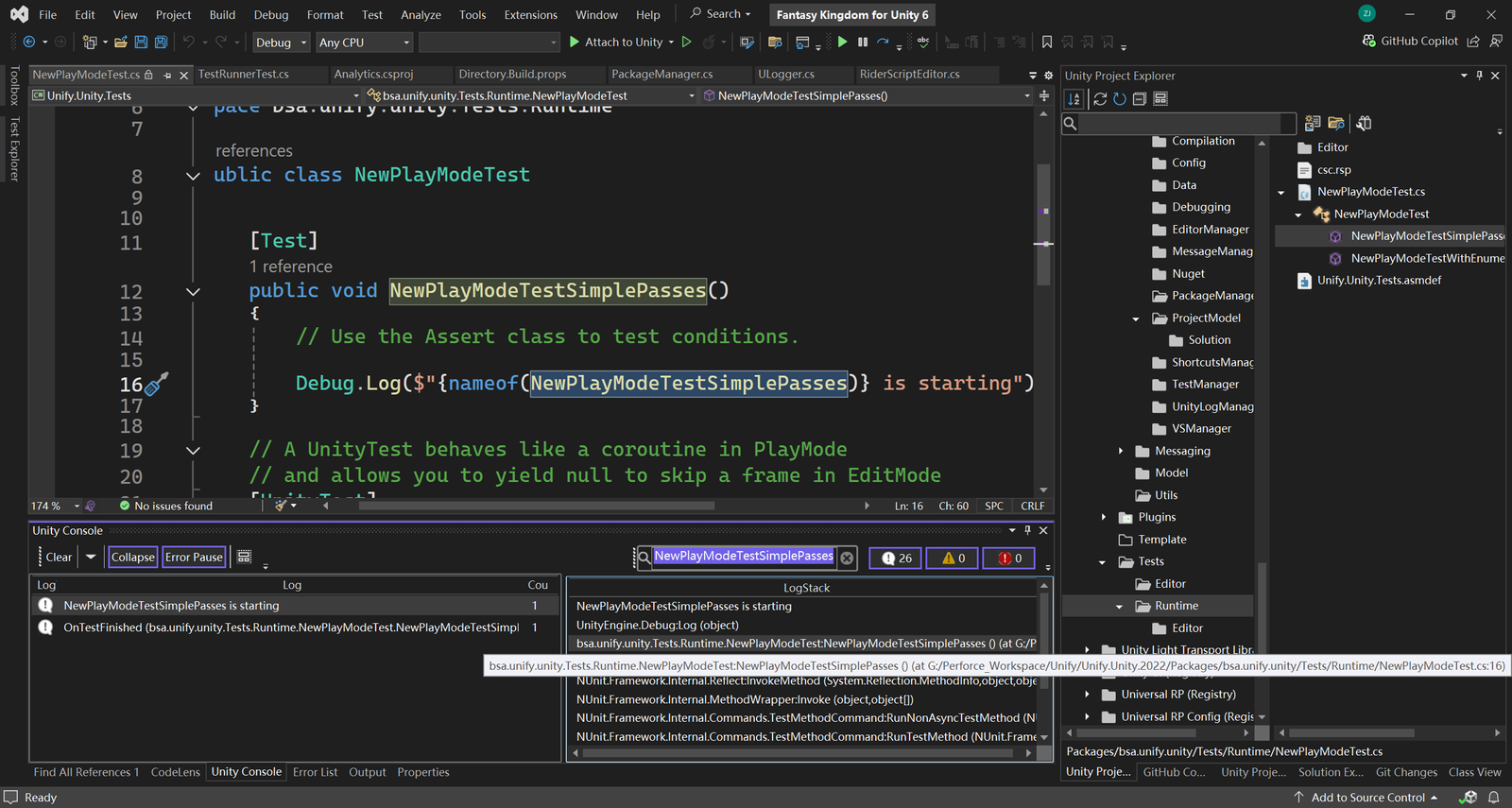
Easily view, filter, and search through Unity’s logs. The tool window supports all standard log levels (Info, Warning, and Error) and enables you to quickly identify issues without switching contexts.
- Direct Console Control:
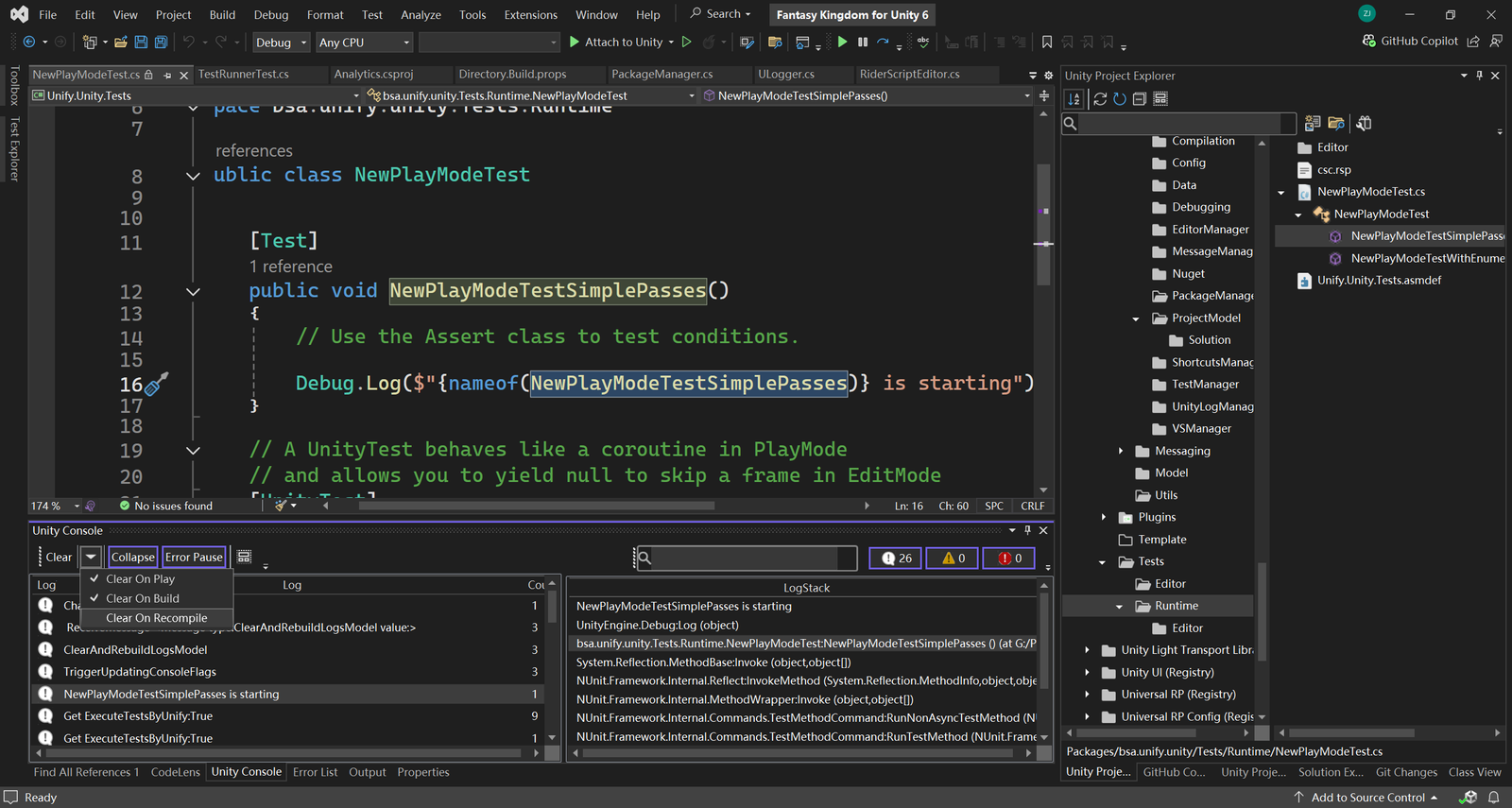
Easily view, filter, and search through Unity’s logs. The tool window supports all standard log levels (Info, Warning, and Error) and enables you to quickly identify issues without switching contexts.- Clear All Logs: Instantly clear the console output in Unity with a single click.
- Toggle Settings: Change core settings like Clear On Play, Clear On Build, Clear on Recompile, and Error Pause directly from Visual Studio, ensuring that your debugging environment is always tailored to your current workflow.
- Integrated Workflow:
By embedding the Unity Console Tool Window into Visual Studio, you eliminate the need to constantly shift your focus between the Unity Editor and your development environment. This streamlined approach not only boosts productivity but also simplifies debugging and log analysis.
- Customizable UI:
The tool window is designed with user experience in mind, featuring a customizable interface that adapts to your preferences. In addition to the traditional vertical layout found in the Unity Console Window, this extension also offers a horizontal layout. This dual-layout option allows you to choose the arrangement that best fits your workflow and screen real estate, whether you prefer a side-by-side log display or a more conventional top-to-bottom list.