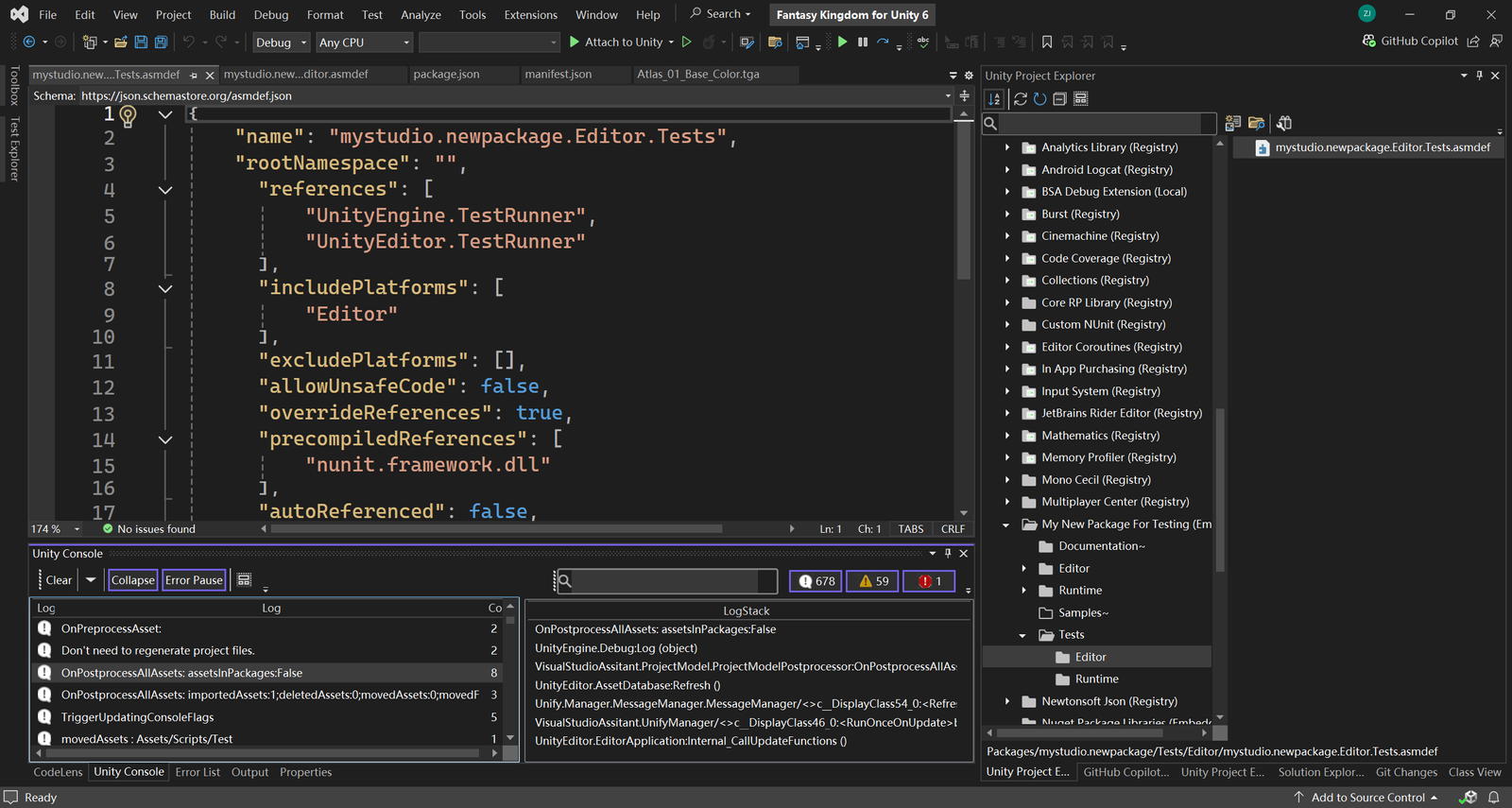
Unity Project Explorer displays all of the files related to your Project and is the main way you can navigate and manage Assets and Packages in Visual Studio, similar to the Project window in the Unity Editor.

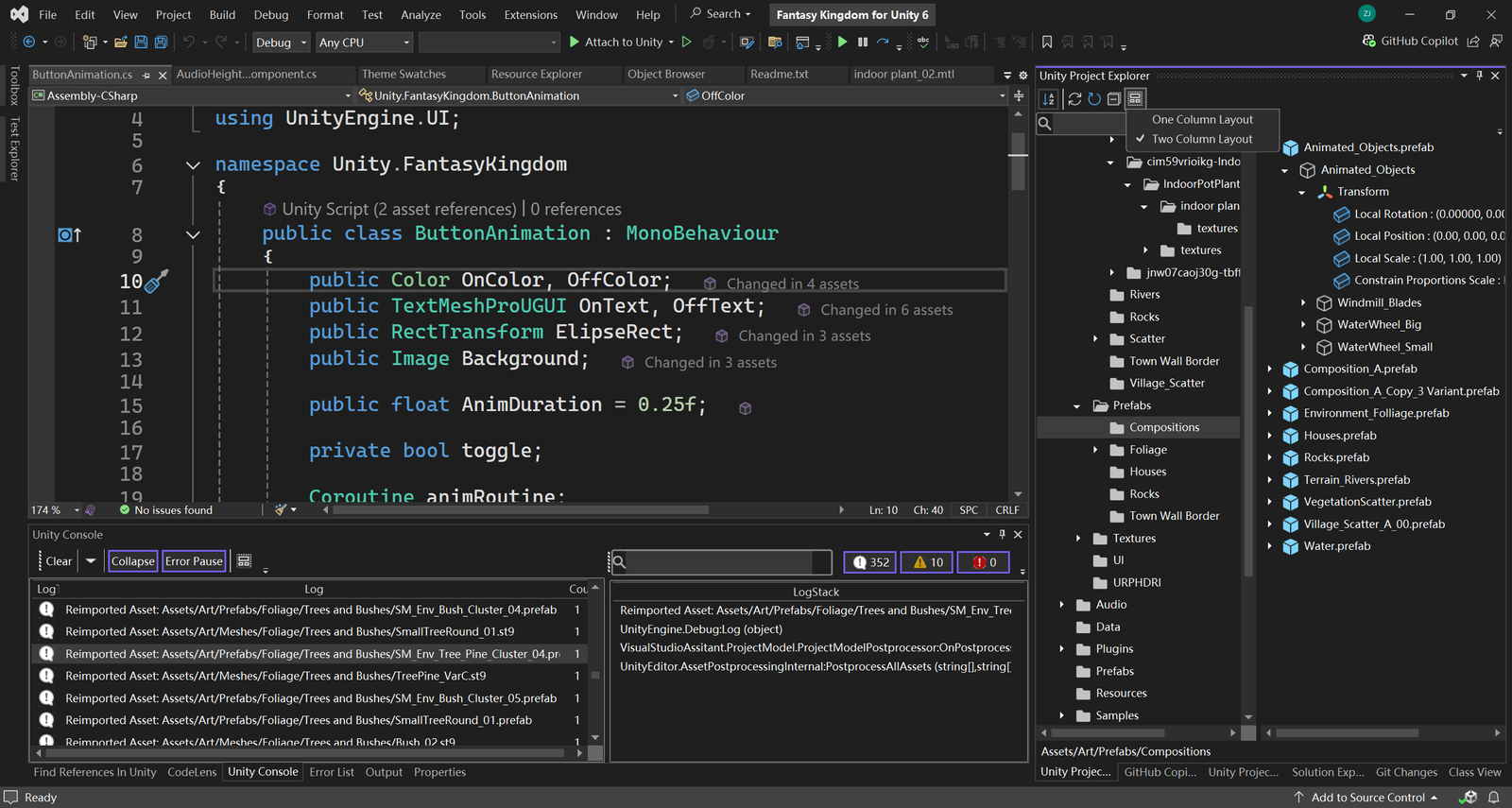
Two Column Layout
You can change the layout of the Unity Project Explorer to either the One Column or Two Column layout. The Two Column Layout includes an extra pane that displays the contents of selected folders. Individual Assets are shown in the right hand panel as icons that indicate their type (for example, script, material, prefab,scene).
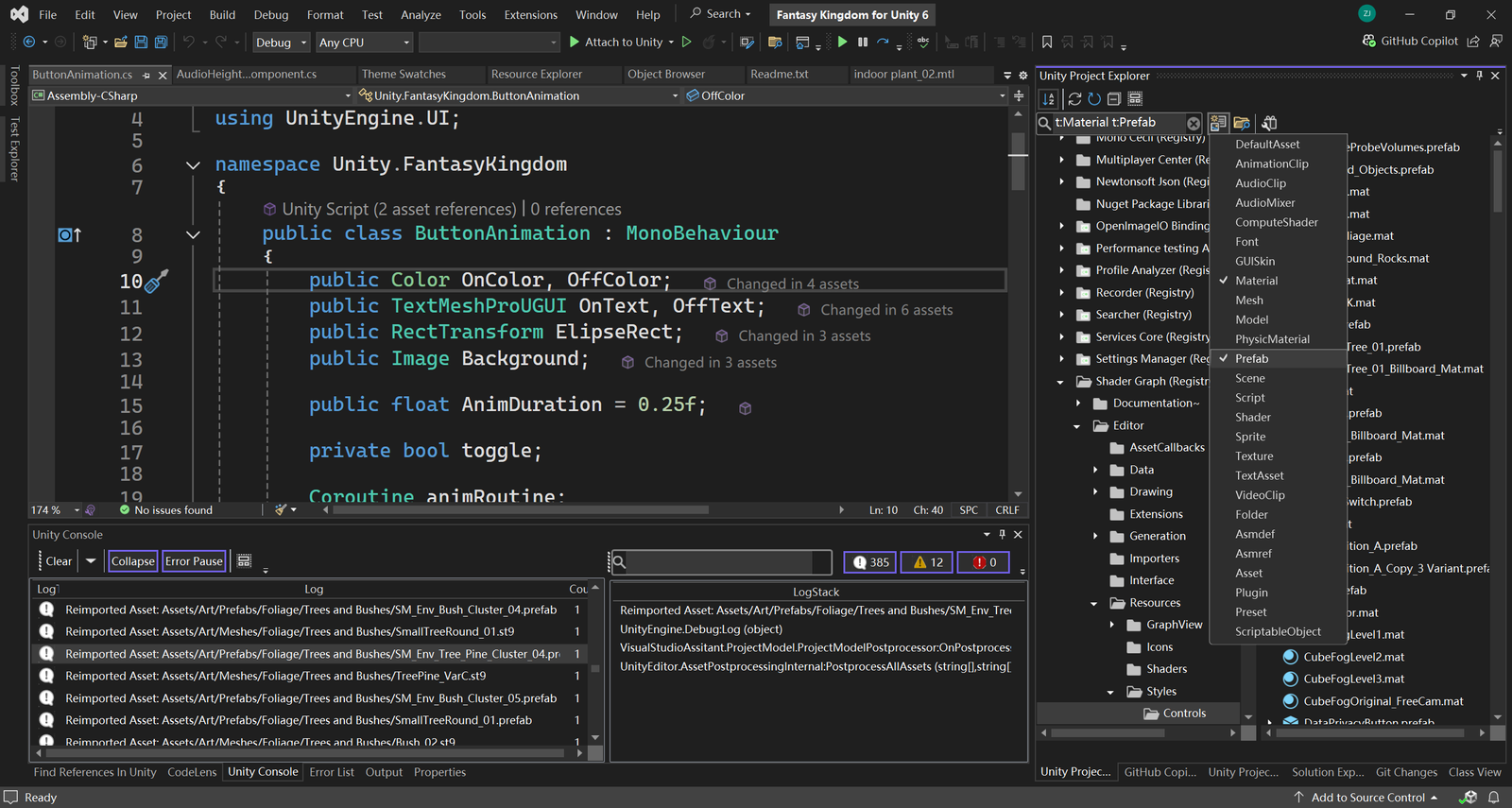
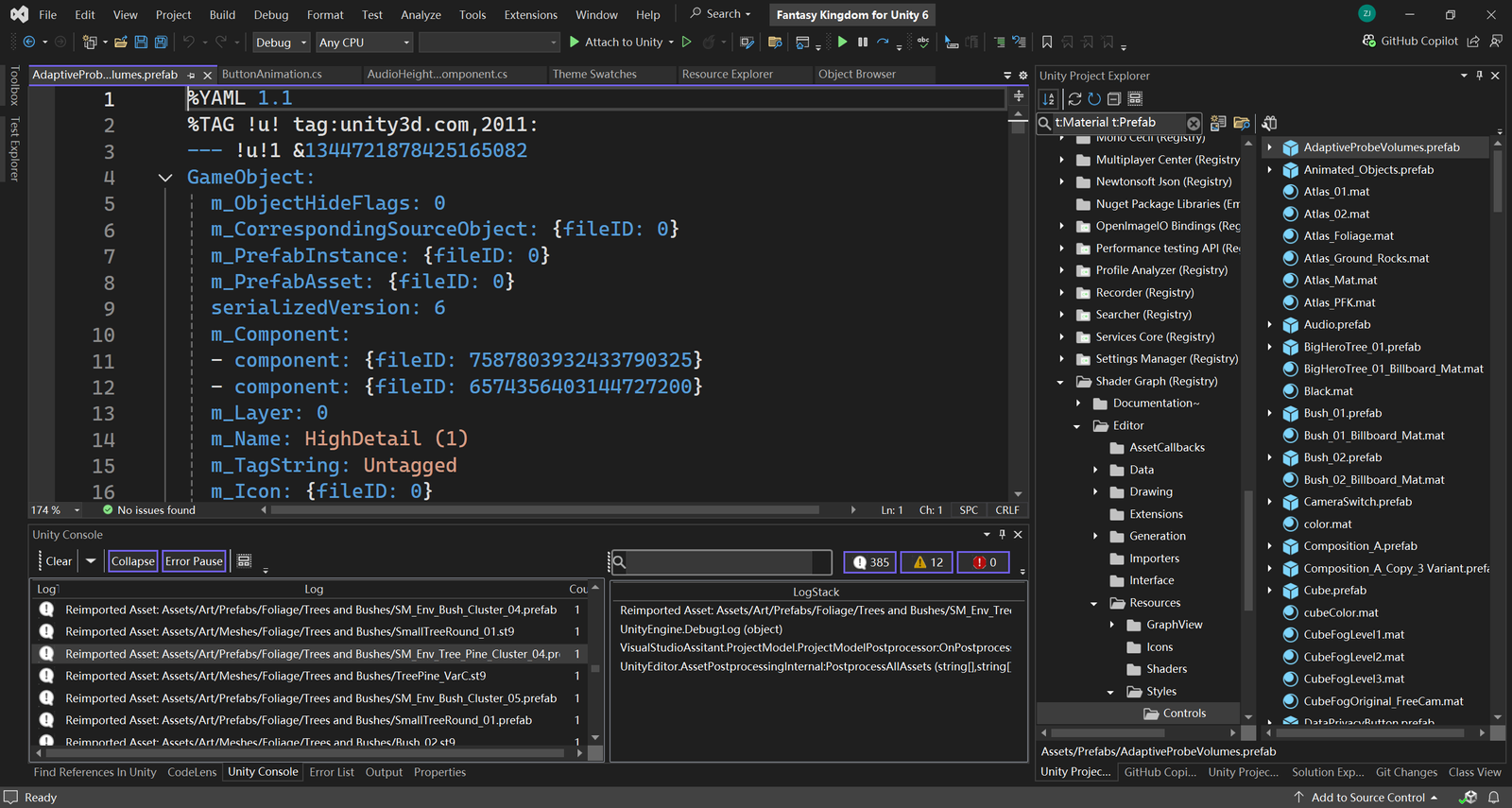
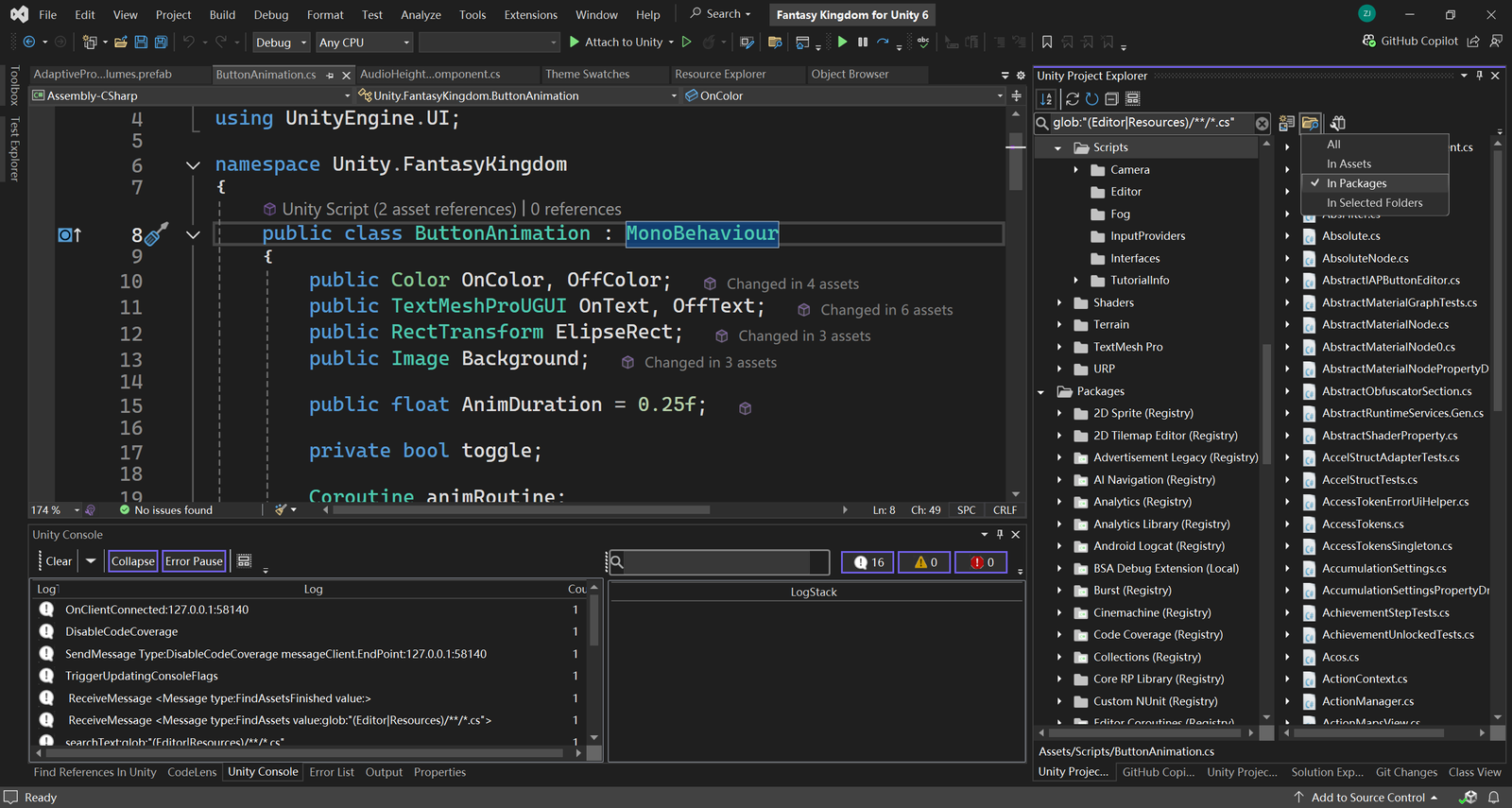
Advanced Search Toolbar with Search filters
You can search the assets by type, for example Mesh, Prefab, Scene. You can also search the assets by label.
You can even search for more than one type or label at once with Search filters.
Search filters work by adding an extra term in the search text. A term beginning with t: filters by the specified asset type, while l: filters by label. Search filters support all the syntax which can be used in the search bar of the Project window in the Unity Editor. For example, you can use globbing to match specific rules.
File templates and The Quick Add dialog
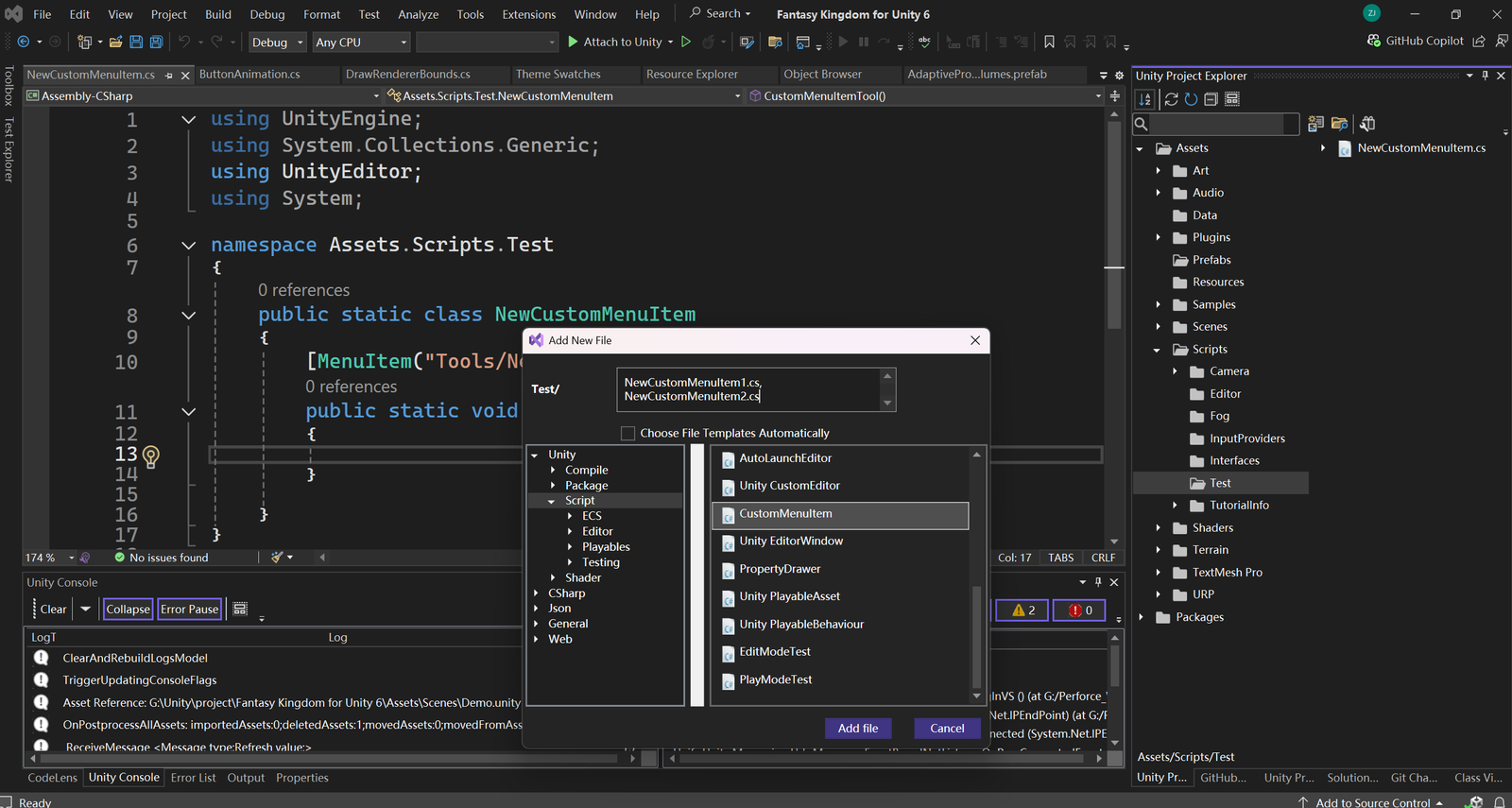
uSymphony offers a lot of file templates for creating Unity related files, such as Unity C# script, Unity unit tests, assembly definition files, and shader files. You can create new templates or edit existing templates to suit your need.
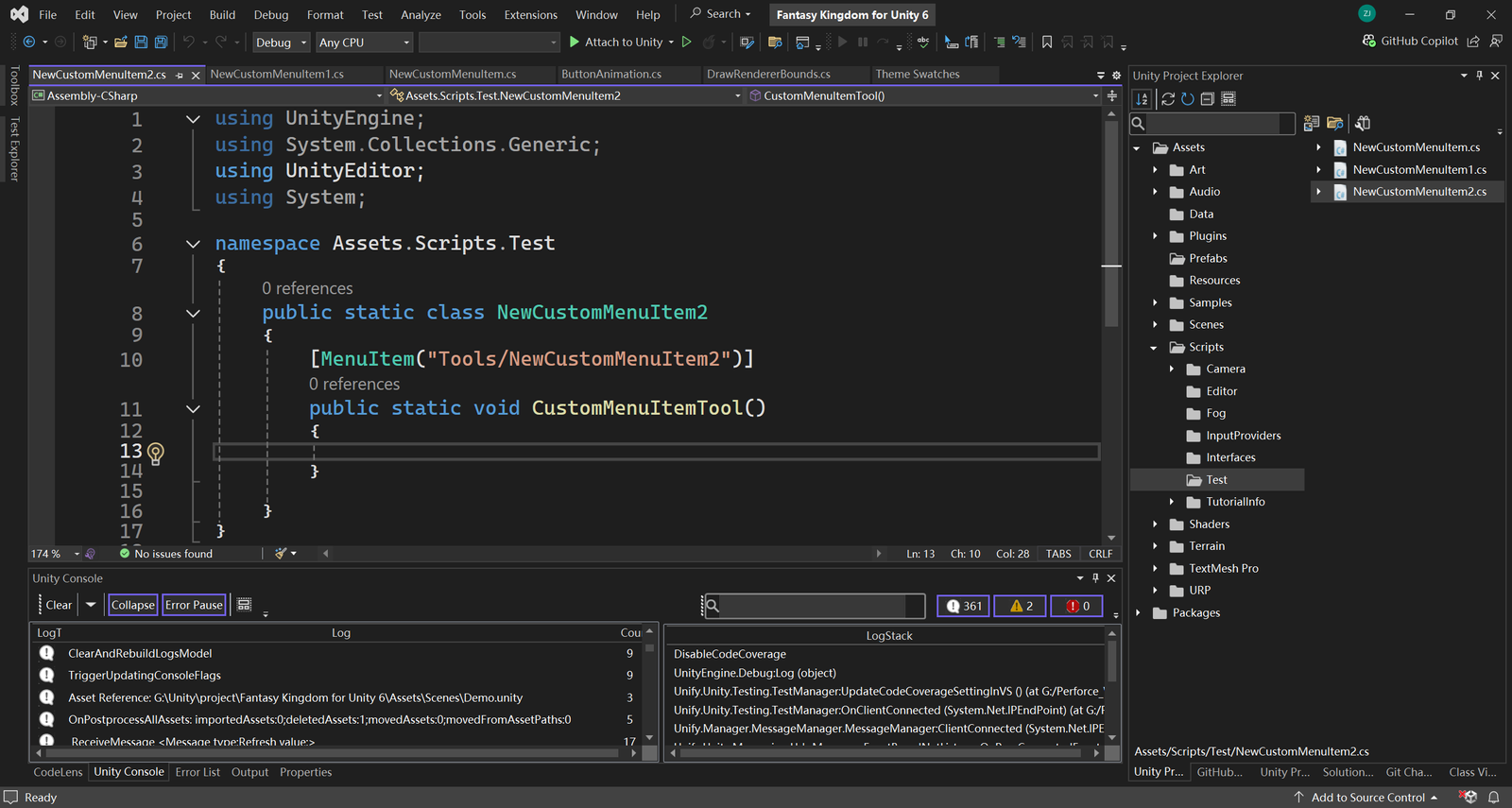
With Quick Add, you can perform the following tasks.
Add a new file without browsing through the template list.
Create nested folders in a single operation.
Add files with any extension, or with no extension at all.
Add multiple files at one time.
Treeview Inspector for Unity Assets
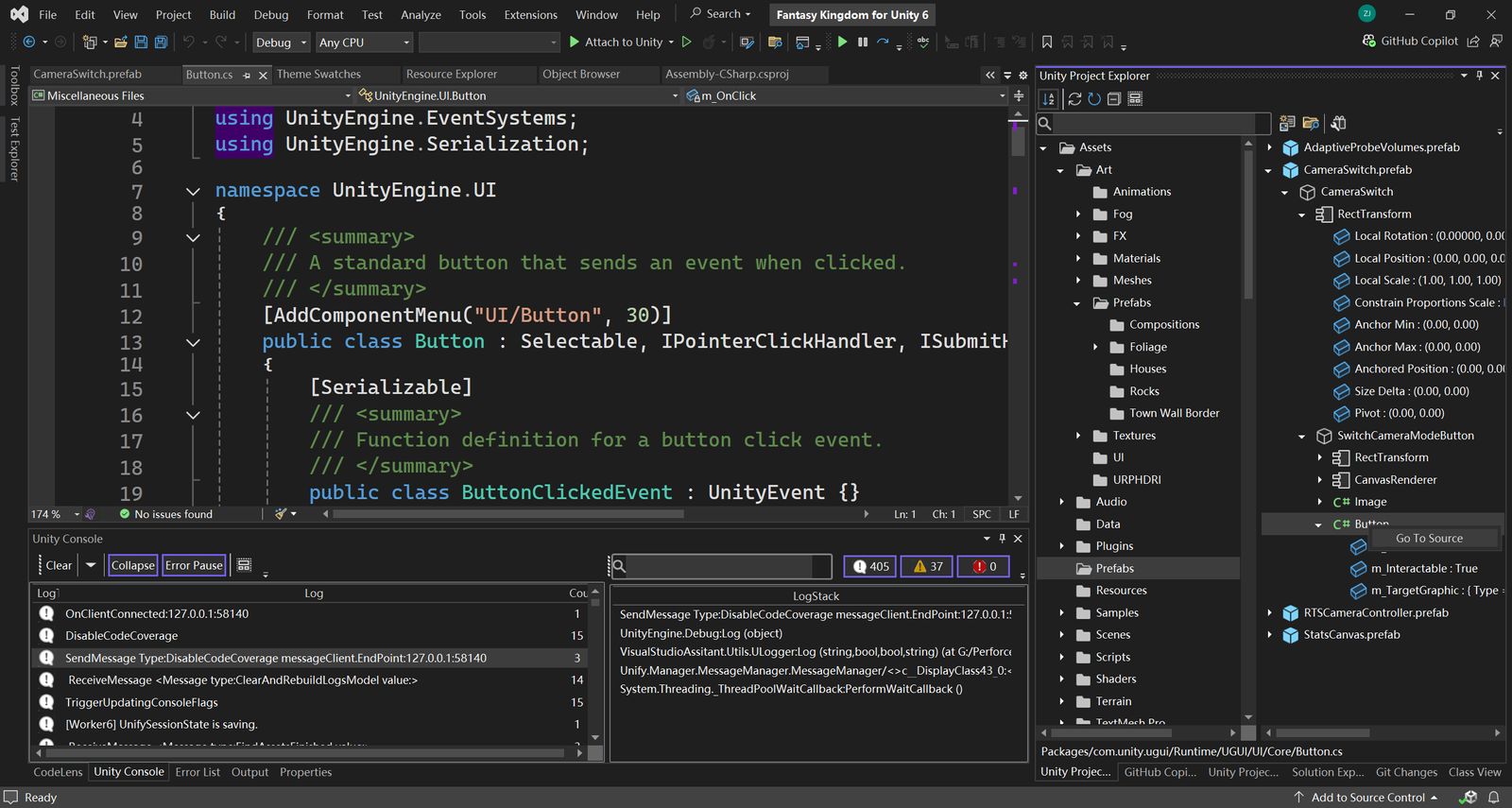
You can use the treeview Inspector to view properties and settings for Assets,GameObjects, Unity components in Visual Studio, similar to the Inspector window in the Unity Editor. If you want a clean view in Unity Project Explorer, you can easily diable this feature in the option.
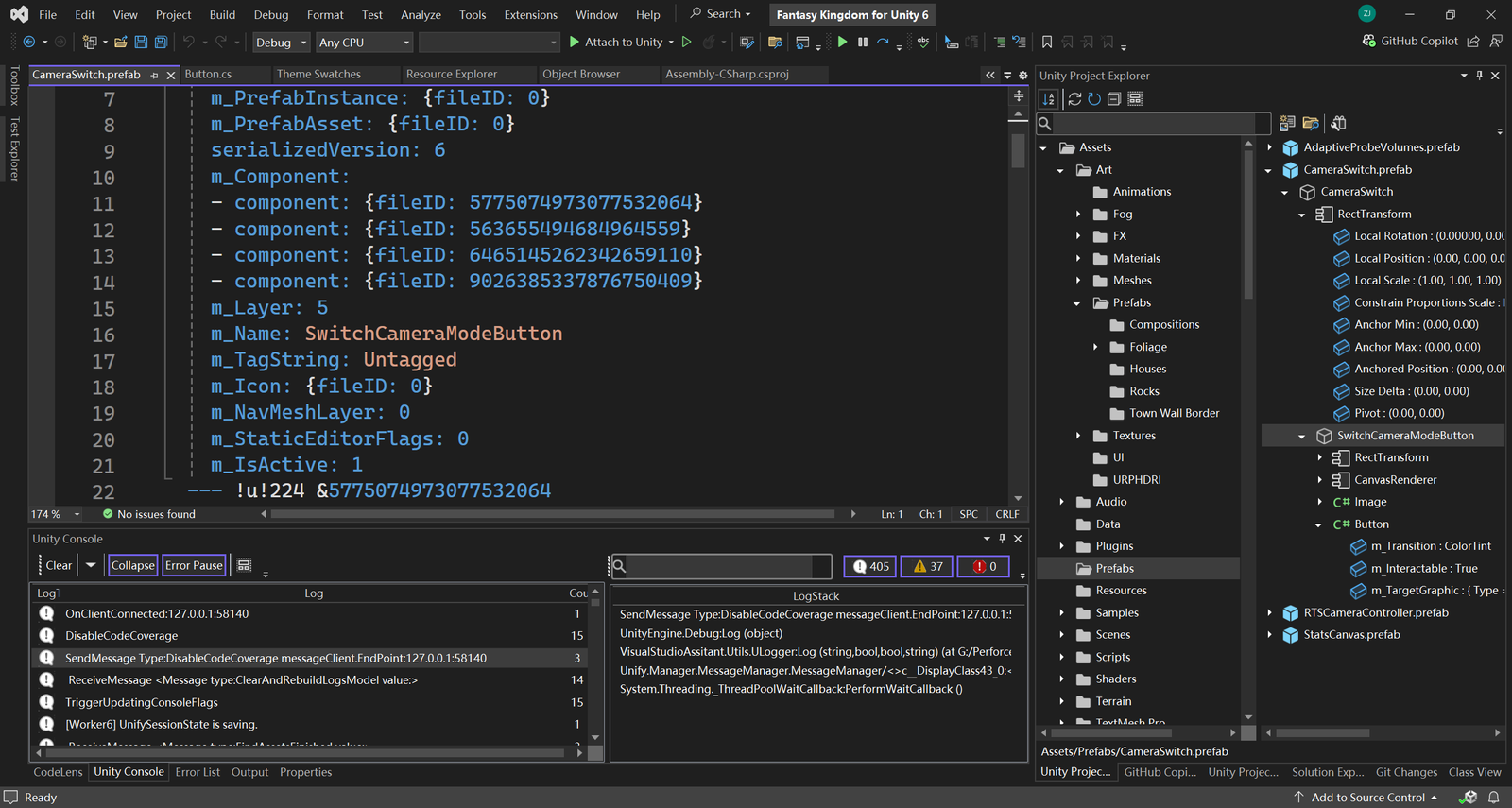
Dynamic inline Class View nodes
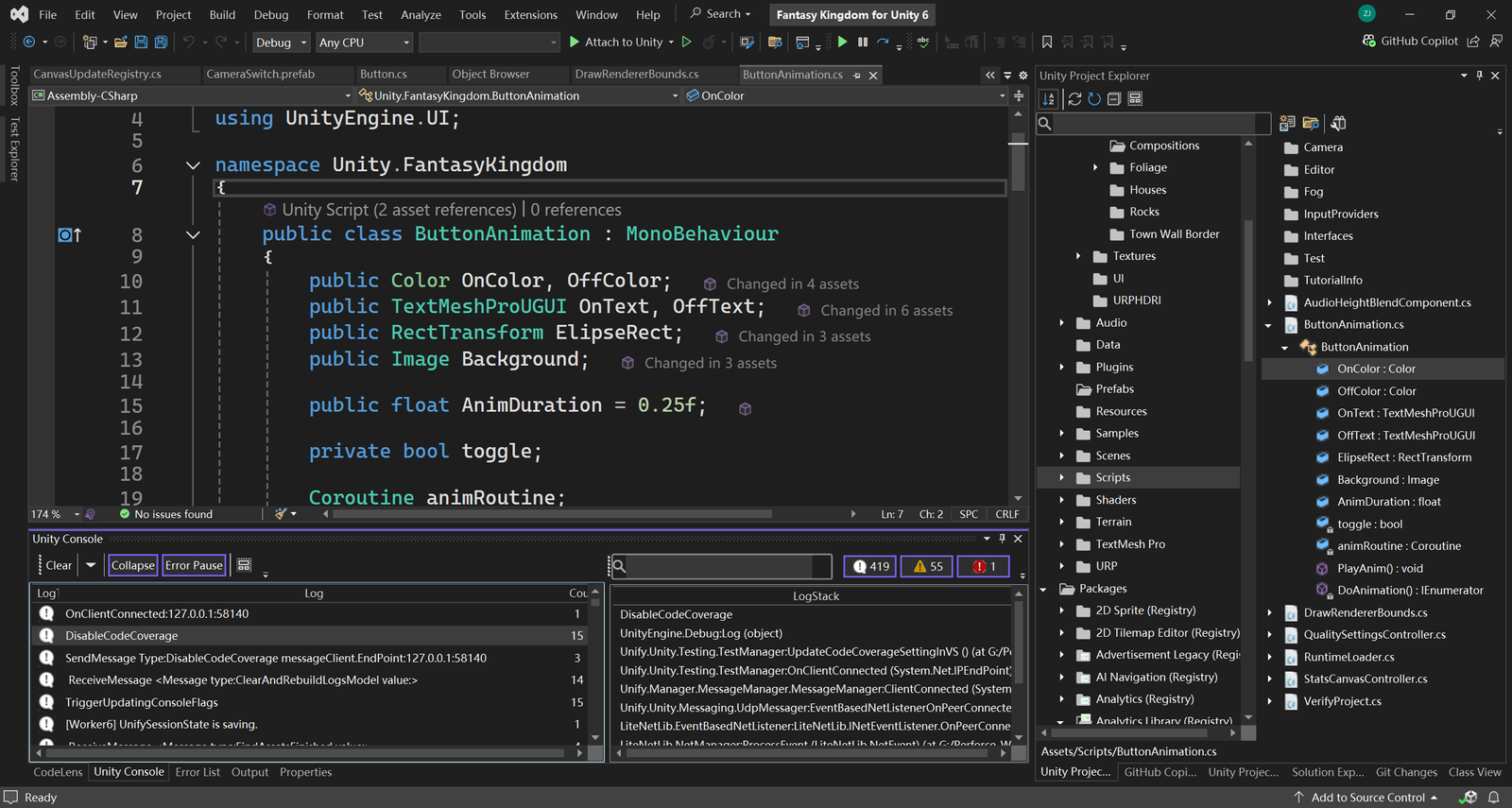
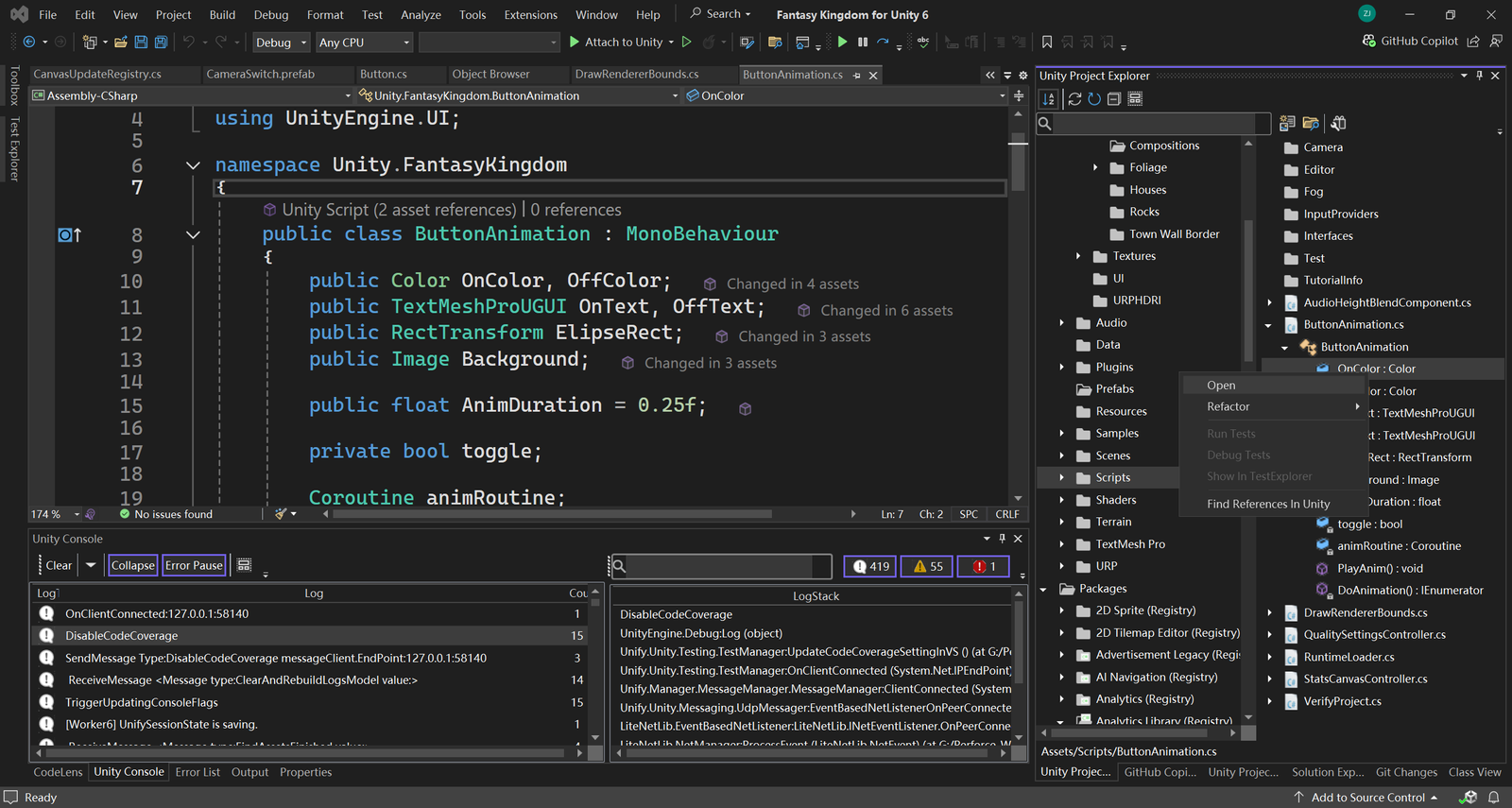
You can check all the elements of the c# files directly inside the Unity Project Explorer.
By using Dynamic inline Class View nodes , you can move to member definitions in the source code.
View and Edit Image
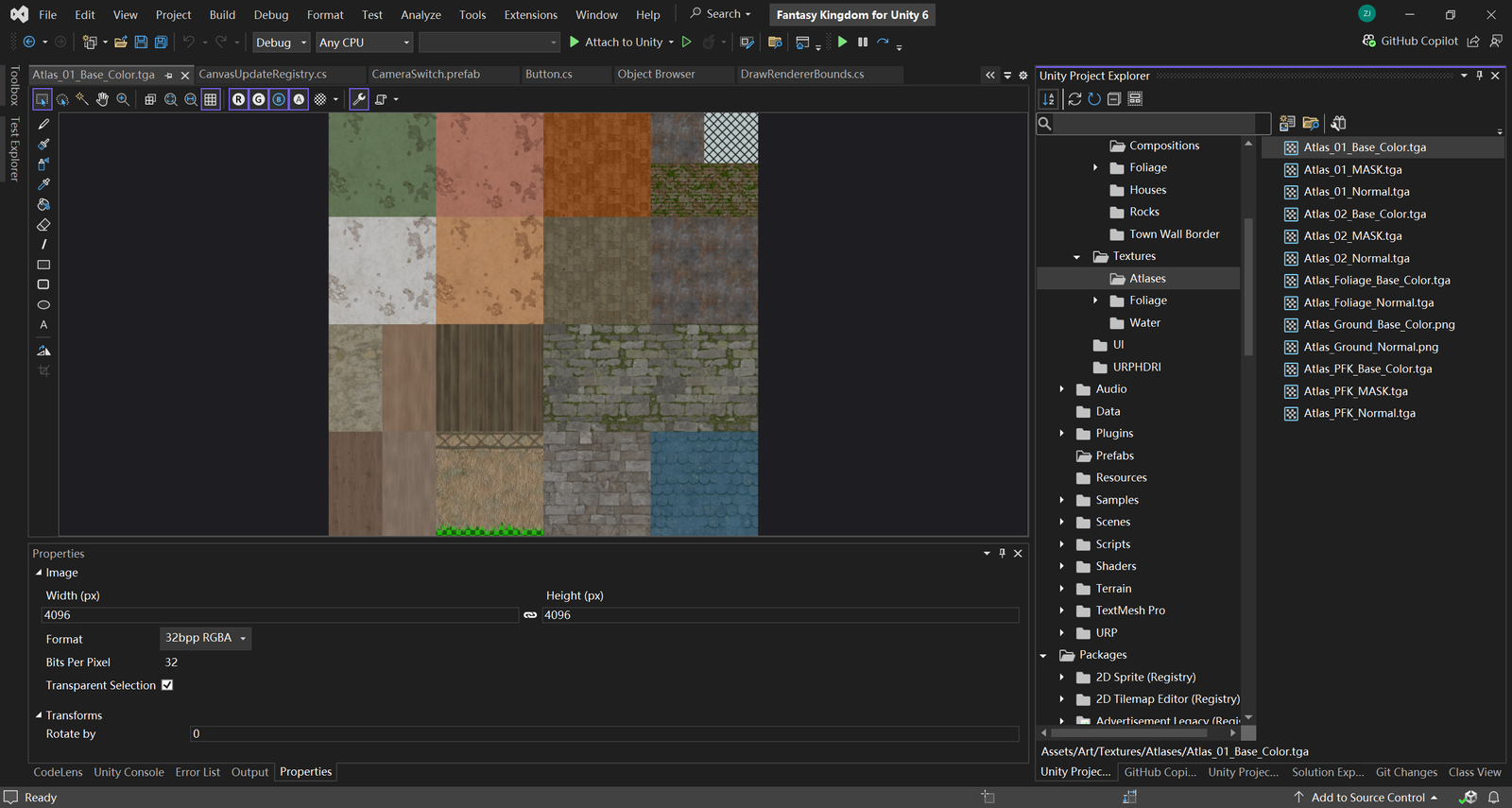
You can use the Image editor to create and modify textures and images in ways that resemble other image editors. The Image Editor also provides mipmapping and other features for use with 3D graphics, and supports many of the highly compressed, hardware-accelerated texture formats that DirectX supports.
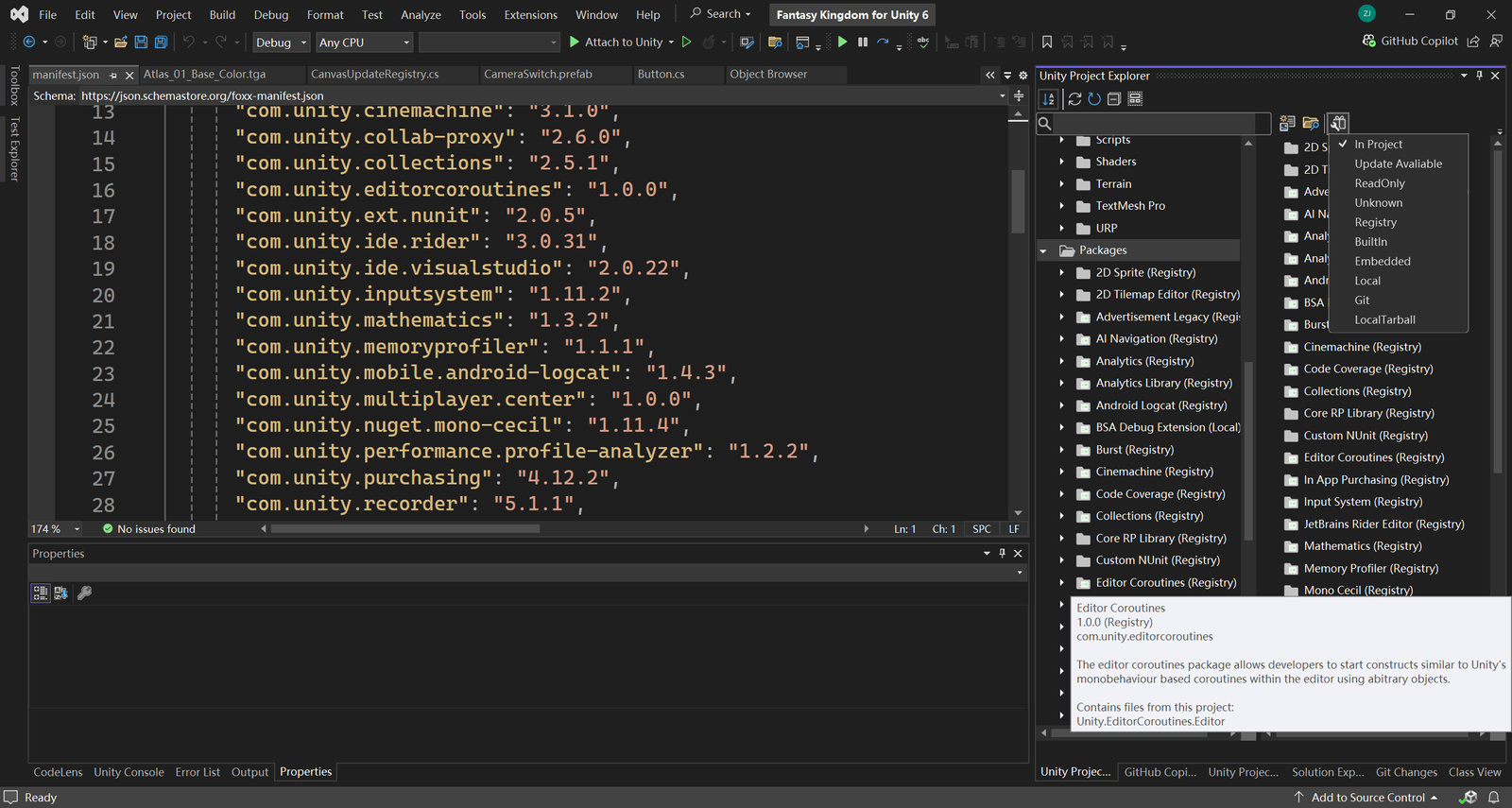
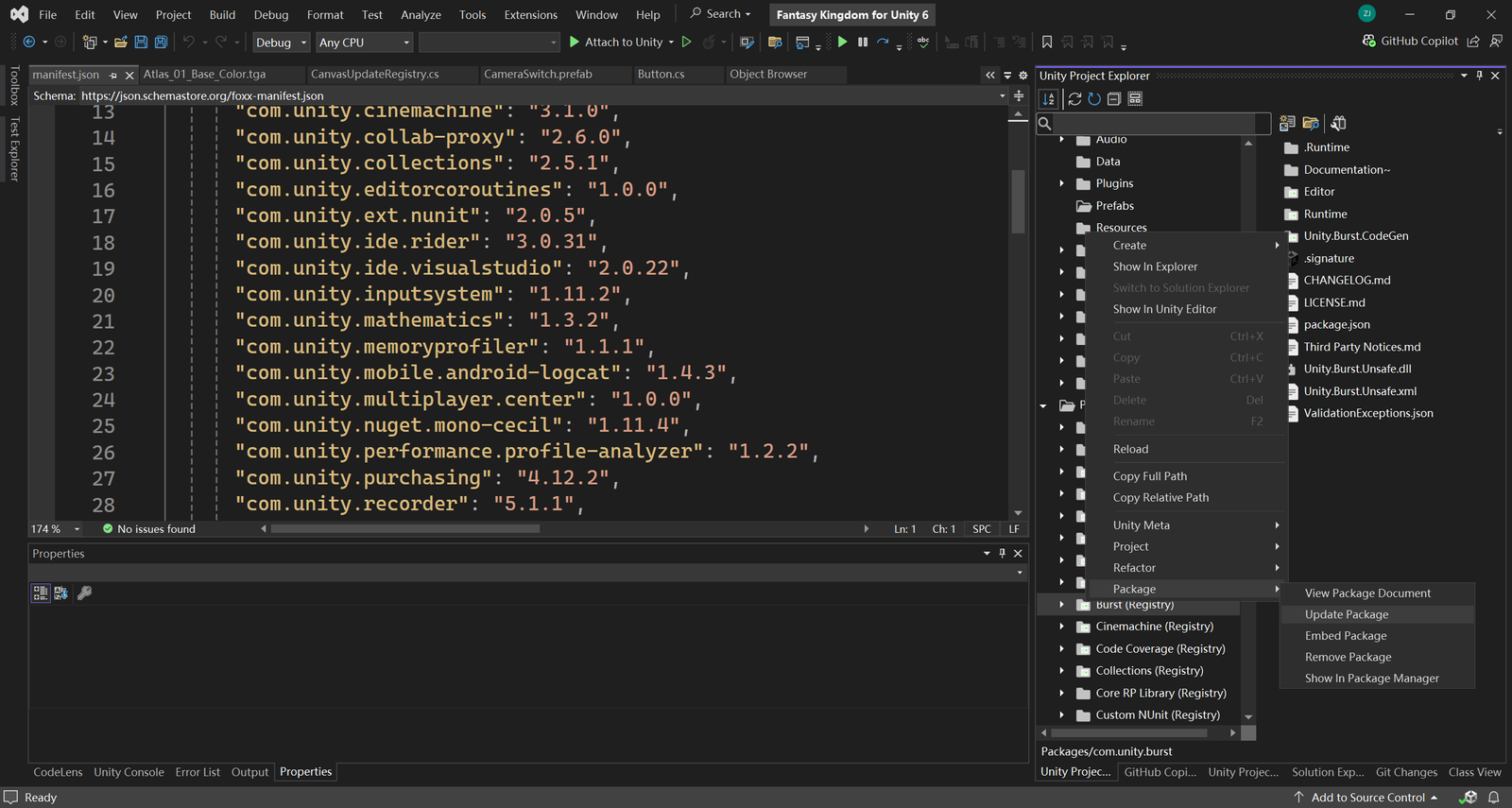
Manage Packages installed in your project
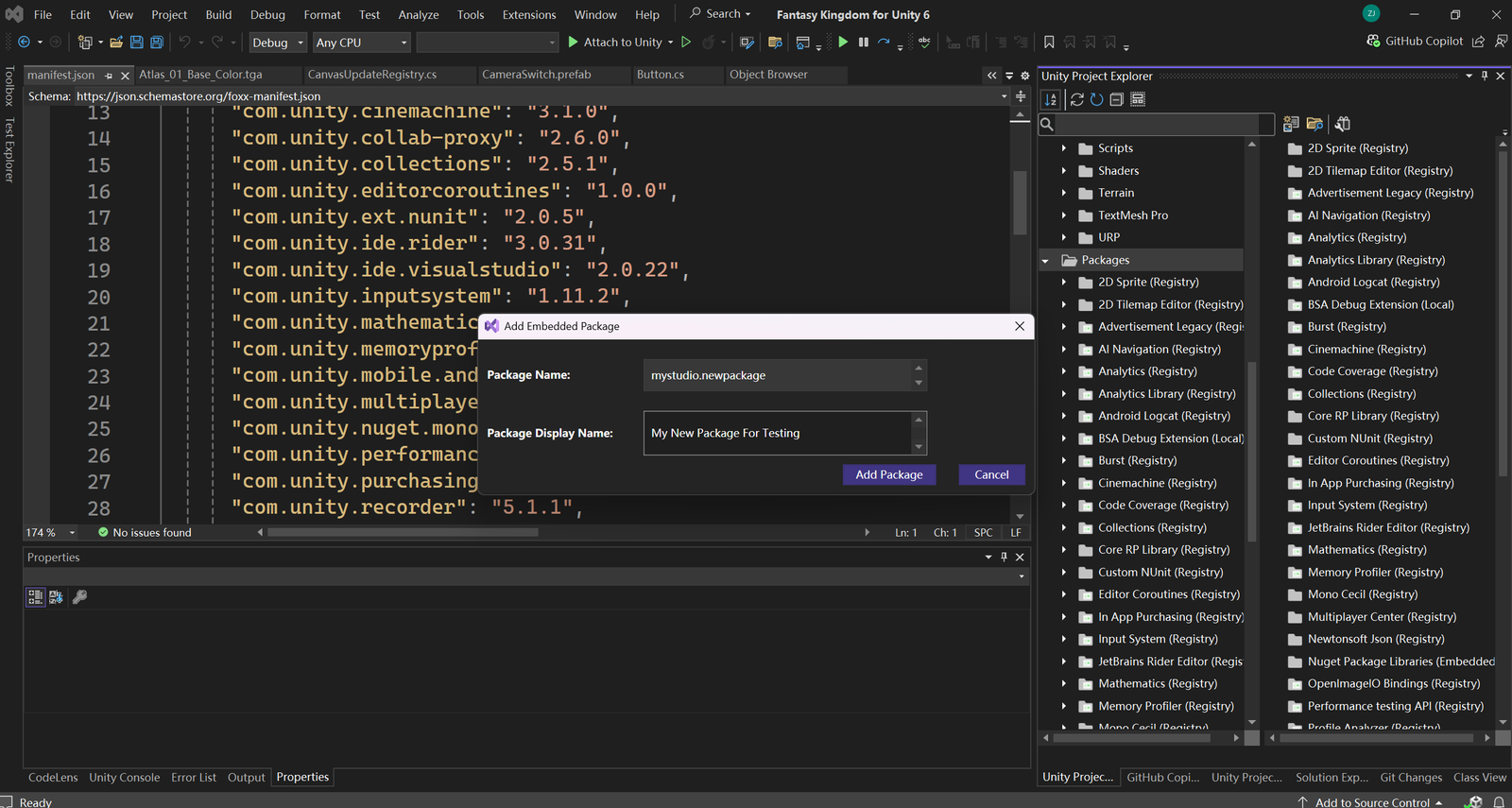
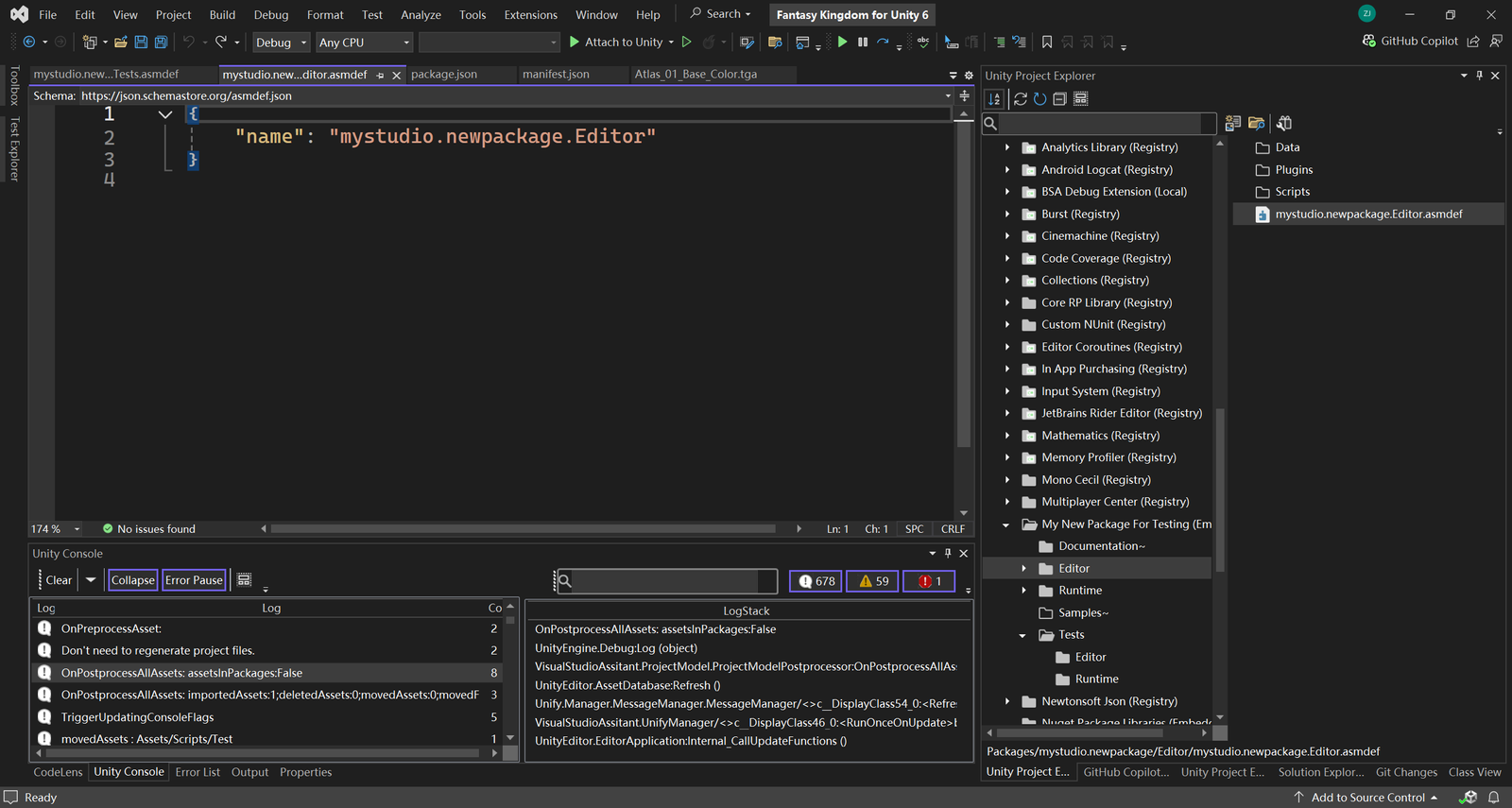
You can view all the packages installed in your project inside Unity Project Explorer. You can even update, remove and embed the packages. uSymphony offer a complete package template for creating new UPM package. With one-click, you can create a new embed package inside Package folder.